


Most people buy their gaming and streaming setup in the wrong order. They drop most of their budget on a GPU, then wonder why their stream still looks and sounds amateurish. The truth is, the piece that makes a stream watchable usually isn’t the graphics card. It’s the audio and the lighting.
This guide walks through a full gaming and streaming setup for 2026, piece by piece, in the order you should actually buy things. Whether you’re gaming on PC or console, playing casually, or streaming to an audience, you’ll find a clear next step here. Along the way, we’ll point you to deeper buying guides for the specific gear worth your money.
What You Actually Need for a Gaming and Streaming Setup in 2026
A complete gaming and streaming setup in 2026 comes down to six pieces: a capable PC or console, a monitor that matches how you play, a comfortable headset, a dedicated microphone, decent lighting, and a webcam. Software and internet speed round it out. You don’t need all six on day one, but skipping audio and lighting is the most common, and most fixable, mistake.
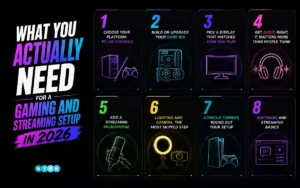
Step 1: Choose Your Platform: PC or Console
Before buying anything else, decide what you’re actually playing and streaming on.
PC: gives you the most control. You can upgrade individual parts over time, run more streaming software, and customize almost everything. The tradeoff is complexity: more settings to configure, more things that can go wrong.
Console: (PS5 or Xbox) is simpler. Built-in share and record tools make basic streaming and clipping painless, and there’s nothing to build or troubleshoot. The tradeoff is a lower ceiling; you’re working within what the hardware allows, not customizing it.
If you’re still deciding between the two, our guide to the best gaming consoles to buy in 2026 breaks down which console fits which kind of player.
One thing that’s changed for PC streamers heading into 2026: dual-PC streaming setups, once considered the gold standard, are no longer necessary for most people. Modern GPU encoders handle gameplay and stream encoding on the same machine without the frame-rate hit that used to force serious streamers into a second PC.
NVIDIA’s own broadcasting documentation now positions a single RTX-equipped PC as a full replacement for the old two-machine setup, which also means a capture card, previously a near-default purchase, is now mostly a niche tool for people who genuinely run two systems, not something every new streamer needs to buy.
Step 2: Build or Upgrade Your Core Rig
If you’re going the PC route, the core rig is where most of the budget goes, but it doesn’t need to be where all of it goes.
CPU and GPU: In plain terms, your GPU handles what you see (frame rates, visual quality), and your CPU handles everything running alongside the game (browser tabs, Discord, your streaming software). For anyone planning to stream, both matter, because encoding a video stream is its own workload sitting on top of the game itself.
RAM: 32GB has become the practical sweet spot in 2026 for anyone multitasking while gaming; running OBS, Discord, and a browser at the same time eats memory fast. 16GB still works for gaming alone, but it gets tight the moment you add streaming software into the mix.
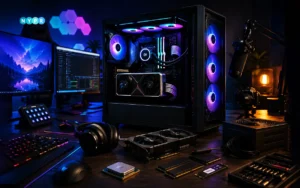
Budget tiers to think in terms of:
- Entry ($800–$1,200): solid 1080p/1440p gaming, light streaming
- Mid ($1,800): strong 1440p performance with headroom for streaming overlays and alerts
- Streaming-ready ($2,800+): simultaneous high-settings gaming and high-bitrate streaming without compromise
One spec worth checking before you buy: AV1 hardware encoding support. AV1 compresses video meaningfully better than the older H.264 standard, which means a cleaner-looking 1440p stream even on a modest home upload speed. It’s becoming the practical 2026 baseline to look for in a GPU if streaming is part of the plan.
Prebuilt vs. custom build. Building your own PC gives you full control over parts and often saves money if you’re comfortable with assembly. A prebuilt system costs a bit more but comes validated, with warranty support and no risk of a botched install. Neither is wrong; it depends on how much you want to deal with hardware yourself.
If portability matters more than raw upgrade potential, our guide to the best gaming laptops for streaming and content creation covers what specs actually matter when your PC needs to travel with you.
Step 3: Pick a Display That Matches How You Play
A monitor upgrade is easy to overspend on if you don’t know what you’re actually optimizing for.
- Refresh rate determines how smooth motion looks; 144Hz is the practical sweet spot for most single-player and casual competitive play. Push to 240Hz if you’re playing fast-paced shooters where every frame of reaction time counts. Beyond that, the returns get small fast, and you’re mostly paying for marginal gains that matter only at a very high competitive level.
- Resolution trades off against refresh rate at a given price point; 1440p is currently the most balanced choice for most gamers, while 4K looks stunning but demands more from your GPU to hit high frame rates.
- Panel type (OLED, IPS, VA) affects contrast, color, and response time. OLED has become far more affordable in 2026 than it was even a year or two ago, which is worth factoring in if you’d previously written it off as too expensive.
For a full breakdown of specific models by budget and use case, see our guide to the top gaming monitors in 2026.
Step 4: Get Audio Right, It Matters More Than People Think
This is the step most new streamers skip, and it’s usually the one that costs them viewers.
A $50 headset upgrade does more for how professional your stream sounds and for how well you hear footsteps and callouts than a $300 GPU upgrade does for how it looks. Viewers tolerate average video quality far more than they tolerate audio that’s tinny, echoey, or hard to understand.
Wired vs. wireless used to be a real tradeoff, with wireless headsets introducing noticeable input lag. That gap has closed significantly with modern 2.4GHz wireless connections, though wired remains the safest choice for the most latency-sensitive competitive play.
Our guide to the best wireless gaming headsets for PC and console covers the specific models worth considering, including cross-platform options that work across PC, PS5, and Xbox without needing separate hardware for each.
Step 5: Add a Streaming Microphone
If you’re only gaming, your headset mic is probably fine. If you’re streaming to an audience, it usually isn’t.
USB microphones are the simpler starting point: plug in, adjust levels, done. They’re the right call for most people getting started.
XLR microphones deliver noticeably richer, more broadcast-quality sound, but they require an audio interface (and often a gain booster) to work properly, which adds cost and setup complexity. It’s the right upgrade once you’re committed to streaming regularly and want your voice to sound like it belongs on a real broadcast.
For most people who actually go live regularly, the microphone ends up being the single highest-impact purchase in the whole setup, more so than the camera, and often more than the monitor. Our guide to the top microphones for streamers in 2026 walks through specific picks at every budget.
Step 6: Lighting and Camera, the Most Skipped Step
Here’s a detail that surprises a lot of new streamers: a single decent key light improves how you look on camera more than swapping to a premium webcam does. Lighting shapes how any camera renders your face; flat overhead light makes even a great webcam look washed out and grainy, while a simple key light placed at an angle instantly adds depth and clarity.
For the webcam itself, prioritize frame rate and low-light performance over raw resolution; a smooth 1080p60 feed generally looks better on stream than a choppy 4K one. Position your light source in front of you, slightly off to one side, rather than directly overhead or behind you.

Step 7: Console Owners, Round Out Your Setup
If you’re building around a PS5 rather than a PC, the buying priorities shift slightly. Storage expansion, a second controller, and a reliable headset tend to matter more than anything monitor- or lighting-related early on, since the console handles a lot of the streaming groundwork for you.
That doesn’t mean console players should ignore the rest of their setup. A quality monitor, comfortable gaming chair, stable internet connection, and a dedicated microphone can make just as much difference to your overall gaming and streaming experience as they do on a PC. If you’re planning to stream regularly, it’s worth thinking beyond the console itself and investing in accessories that improve comfort, communication, and video quality over long sessions.
Once your hardware is in place, the final step is configuring the software that brings everything together. Whether you’re streaming directly from your console or routing gameplay through a PC, choosing the right broadcasting software and settings will have a bigger impact on stream quality than most hardware upgrades.
Our guide to top accessories every PS5 owner needs walks through exactly what to prioritize first.
Step 8: Software and Streaming Basics
Once the hardware is in place, OBS Studio and Streamlabs are the two most common (and free) choices for actually running a stream, capturing your screen and webcam, adding overlays, and sending the feed out to Twitch or YouTube.
Bitrate is the setting that determines how much data your stream sends per second, and it needs to match your internet upload speed, or viewers will see buffering and dropped frames. Twitch’s own broadcasting guidelines recommend constant bitrate encoding and suggest starting in the 4,500–6,000 kbps range for 1080p streaming, adjusting down if your connection can’t sustain it. It’s worth checking your specific platform’s current recommendations before your first stream, since these numbers shift as encoding standards improve.
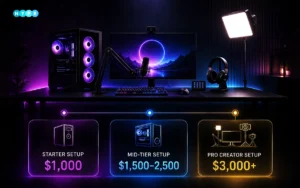
Sample Setup by Budget
Under $1,000 starter kit
- Entry-tier PC or existing console
- 1080p/1440p 144Hz monitor
- USB headset with mic
- Basic ring light
- 1080p30 webcam
$1,500–$2,500 mid-tier streamer kit
- Mid-tier PC with AV1-capable GPU
- 1440p 165Hz monitor
- Wireless gaming headset
- Dedicated USB microphone
- Key light + 1080p60 webcam
$3,000+ pro/creator kit
- Streaming-ready PC build
- 1440p or 4K high-refresh OLED monitor
- Premium wireless headset
- XLR microphone with audio interface
- Multi-light setup + dedicated streaming camera
Common Mistakes When Building a 2026 Gaming and Streaming Setup
- Buying a capture card you don’t need. Unless you’re running a genuine dual-PC setup, modern single-PC encoding handles it.
- Ignoring upload speed. A great PC means nothing if your internet can’t sustain the bitrate your stream needs.
- Skipping lighting entirely. It’s the cheapest upgrade with the most visible impact on stream quality.
- Cheaping out on the chair and desk. You’ll notice ergonomics on hour three of a session, not hour one.
- Not checking for AV1 support. It’s becoming the practical baseline for clean streaming at lower bitrates.
- Overspending on the monitor before fixing audio. Viewers forgive average visuals. They rarely forgive audio they can’t understand.
Where to Go From Here
You don’t need to buy all of this at once. Start with whichever step in this guide addresses your weakest link right now; for most people, that’s audio, not the GPU. From here, dig into the specific buying guides linked throughout this article for the exact gear worth your money at your budget.
For the latest on what’s changing in gaming hardware and streaming tech, check out our ongoing coverage in VR & Streaming and recent hardware news like AMD’s Computex 2026 announcements and the latest from PlayStation’s State of Play.
FAQs
How much does a good streaming setup cost?
A functional starter setup can run under $1,000 if you already own a decent PC or console. A well-rounded mid-tier setup typically lands between $1,500 and $2,500, and a full professional creator kit can run $3,000 or more.
Is a gaming laptop good enough for streaming?
Yes, as long as it has enough sustained cooling performance and RAM (32GB is ideal) to handle gaming and encoding at the same time. Not every gaming laptop is built for that dual workload; see our laptop guide for what to check.
What internet speed do I need to stream games?
Your upload speed needs to comfortably exceed your stream's bitrate, with some headroom to spare. For a standard 1080p stream around 4,500–6,000 kbps, an upload speed of at least 10–15 Mbps is a reasonable starting point, though a stable connection matters more than a high top-line speed.
Can I stream on Twitch and YouTube with the same setup?
Yes, most current gaming setups support both Twitch and YouTube. Software like OBS Studio lets you stream to either platform using the same PC, microphone, webcam, and lighting. Adjustments usually only involve bitrate and resolution settings according to each platform's guidelines.
How can I improve my stream quality without buying a new PC?
Improving your stream quality doesn't always require new hardware. Close unused applications, tweak OBS settings, enhance lighting, adjust microphone placement, and use a wired connection to significantly boost your video and audio quality. Changes often deliver a bigger improvement than upgrading internal PC components.









Leave a comment